Source Optimization
The Spend tab in your campaign provides powerful tools to manage traffic sources and optimize your campaign performance. Here you can view publisher statistics, adjust bids, and control which sources receive your traffic.
Understanding Sources
Each Source ID represents a specific website or publisher where your campaign receives traffic. Sources appear in your Spend tab as soon as they generate an impression.
Source Metrics
For each source, you can track:
- Impressions - Number of times your ad was shown
- Clicks - Number of clicks received
- Conversions - Number of conversions tracked
- Spend - Total amount spent on this source
- CTR - Click-through rate
- CPC - Cost per click
- CPA - Cost per acquisition
- eCPM - Effective cost per thousand impressions
Automatic Source Optimization
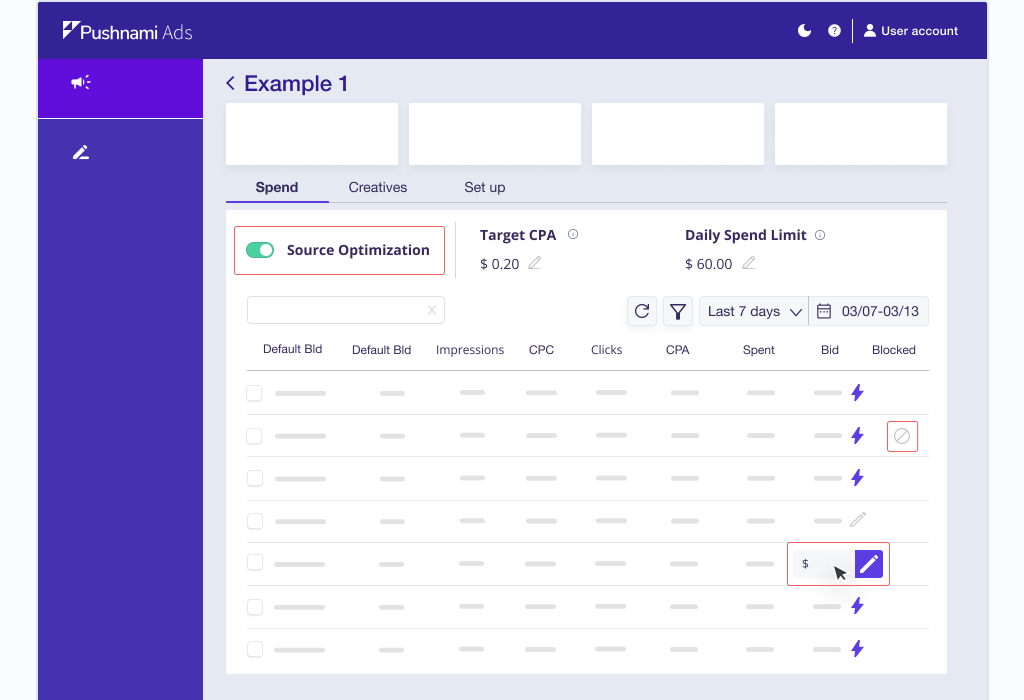
Source Optimization automatically bids up or down on sources to reach your target CPA. When enabled, a lightning bolt icon appears on the campaign to indicate active optimization.
Enabling Optimization
- Go to your campaign's Spend tab
- Toggle Source Optimization ON
- Set your Target CPA
- The system will automatically adjust bids
Requirements for Optimization
For Source Optimization to work correctly:
<<conversion_id>>- Required to track conversions{{=data.adsourceid}}- Optional but highly recommended to attribute conversions to specific sources
Without the conversion ID, the system cannot track your conversions at all. The source ID enables source-level optimization for quality purposes (CVR), allowing the system to identify which sources deliver the best conversion rates and adjust bids accordingly.
See Conversion Tracking for more information on how to track conversions.
How It Works
The optimization algorithm:
- Monitors conversion performance by source
- Increases bids on sources generating conversions below your target CPA
- Decreases bids on sources with CPA above your target
- Respects your daily spend limit during the bidding process
Manual Source Management
You can take manual control of any source, overriding automatic optimization.
These actions apply to one source on one campaign. To control a set of sources across several campaigns at once, build a source list instead and link it from the campaign's Setup tab.
Which Action the Spend Tab Offers
The Mode you picked in the Sources section of the Setup tab decides which per-source action appears here:
| Setup tab mode | The Spend tab offers |
|---|---|
| Block-list | Block |
| Allow-list | Whitelist |
So if you are looking for Whitelist and only see Block, the campaign is in Block-list mode. Change the mode on the Setup tab.
Blocking Sources
Block sources that aren't performing well:
- Find the source in your Spend tab
- Click the Block action
- The source will no longer receive your traffic
Blocked sources:
- Stop receiving impressions immediately
- Are excluded from automatic optimization
- Can be unblocked at any time
A source you block here is blocked on this campaign only, and it stays blocked even if a linked source list does not name it. The Setup tab counts these under By Hand.
Whitelisting Sources
Limit your campaign to only run on specific high-performing sources:
- Identify your best-performing sources
- Click Whitelist on each source you want to include
- Your campaign will only run on whitelisted sources
Use whitelisting when you've identified a set of sources that consistently perform well and want to focus your budget exclusively on them. You should consider exploring more sources on new campaigns regularly to keep your whitelist fresh.
Once you have a set worth reusing, put it in a source list so your other campaigns can use the same set, and so you maintain it in one place.
Removing the last whitelisted source turns source targeting off: the campaign returns to Block-list mode with no lists linked, and can deliver to every source. The app tells you when this happens and names what the reset dropped.
Removing a Source From a Campaign
Remove takes a source back off the campaign. Where Block and Whitelist add a source by hand, Remove holds one out: the source stays out of this campaign even when a linked source list names it.
The Setup tab counts these under Held Out, and Hand them back to the lists puts them back under their lists' control. An exclusion applies only to the mode it was made in, so switching the mode clears it.
Custom Bid Overrides
Set custom bids for individual sources:
- Click on the bid amount for a source
- Enter your custom bid
- This bid overrides both the default bid and automatic optimization
Use custom bids to:
- Bid higher on sources with strong conversion rates
- Bid lower on sources you want to test at reduced spend
- Fine-tune performance beyond what automatic optimization provides
Bulk Source Updates
Manage multiple sources at once:
- Select multiple sources using checkboxes
- Choose a bulk action:
- Block Selected - Block all selected sources
- Unblock Selected - Remove blocks from selected sources
- Whitelist Selected - Add selected sources to whitelist
- Remove from Whitelist - Remove whitelist status
- Confirm the bulk operation
Optimization Strategies
For New Campaigns
- Start with automatic optimization enabled
- Set a reasonable target CPA based on your offer economics
- Let the system gather data for 2-3 days
- Review source performance and make manual adjustments as needed
For Established Campaigns
- Review your top-performing sources weekly
- Consider whitelisting consistent performers
- Block sources that consistently underperform
- Adjust your target CPA based on actual results
Balancing Automation and Control
| Scenario | Recommendation |
|---|---|
| New campaign, testing | Enable optimization, let it run |
| Proven sources identified | Whitelist top performers |
| The same proven set across several campaigns | Put them in a source list, link it in Allow-list mode |
| Specific source issues | Block problematic sources |
| Sources you never want to buy, on any campaign | A source list set as your account default |
| Fine-tuning performance | Use custom bid overrides |
Disabling Optimization
If you prefer full manual control:
- Toggle Source Optimization OFF
- Set your Default Bid
- You are now responsible for managing all source bids manually
When optimization is disabled, all sources will use your default bid unless you set individual bid overrides.