Source Lists
A source list is a named set of publisher source IDs that you build once and link to as many campaigns as you want. When you change what a list holds, every campaign linked to it changes too.
A list saves you from setting the same sources on every campaign, and gives you one place to maintain them.
Where to Find Them
Select Source Lists in the left menu.
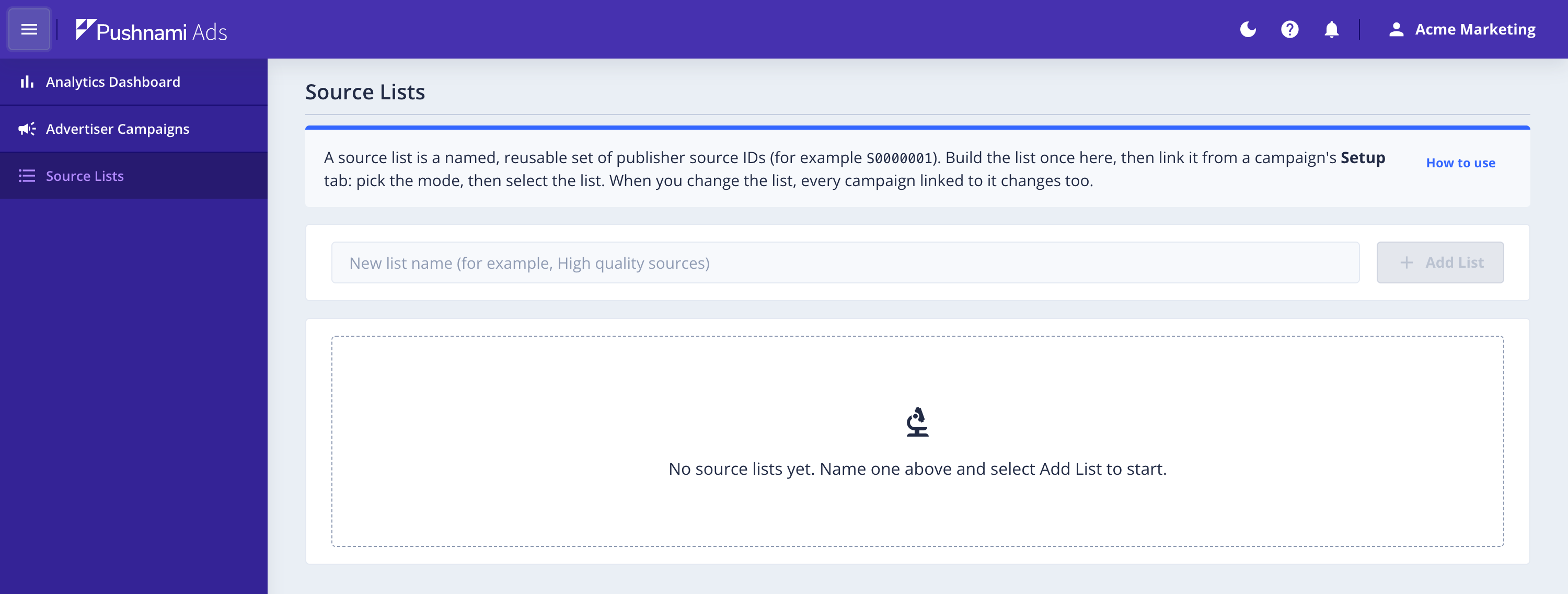
Create a List
Type a name and select Add List. The name is what you will pick from later, on the campaign, so name it for what it holds: High quality sources, Low CVR — blocked.
A new list is empty and linked to nothing. It changes no campaign until you link it.
Add Sources to a List
Select Edit sources on the row. The dialog shows what the list holds now, and takes new IDs that you paste or type.
- Select Add to add every ID in the box.
- Select Remove to take every ID in the box out of the list.
- Select the × on a source to remove just that one.
A source ID is the letter S followed by seven digits, like S0004182. You can paste them separated by spaces, commas or new lines, so a whole column out of a spreadsheet works. The dialog ignores anything in the box that is not an ID, and the ID count under the box tells you how many it recognized. Check that number before you select Add.
Above ten sources, a filter box appears above the list so you can find one ID without reading the whole set.
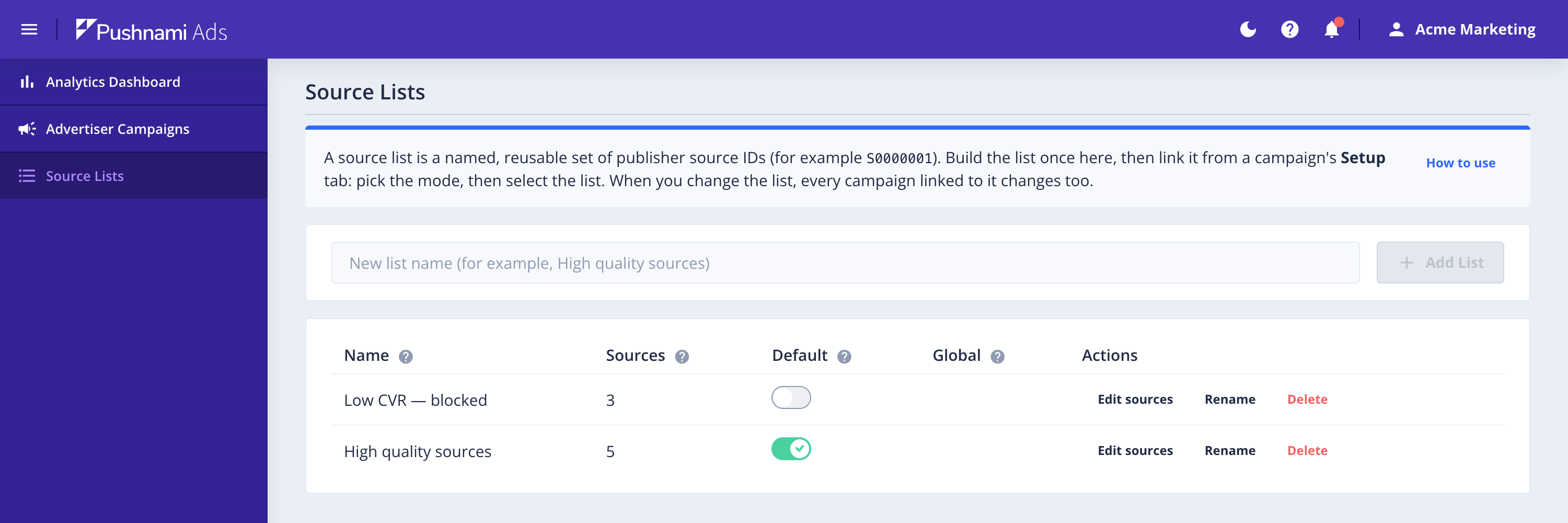
Once your lists hold sources, the table shows how many each one holds:
Link a List to a Campaign
Open the campaign, go to the Setup tab, and find the Sources section. With nothing linked, the campaign reaches every source.
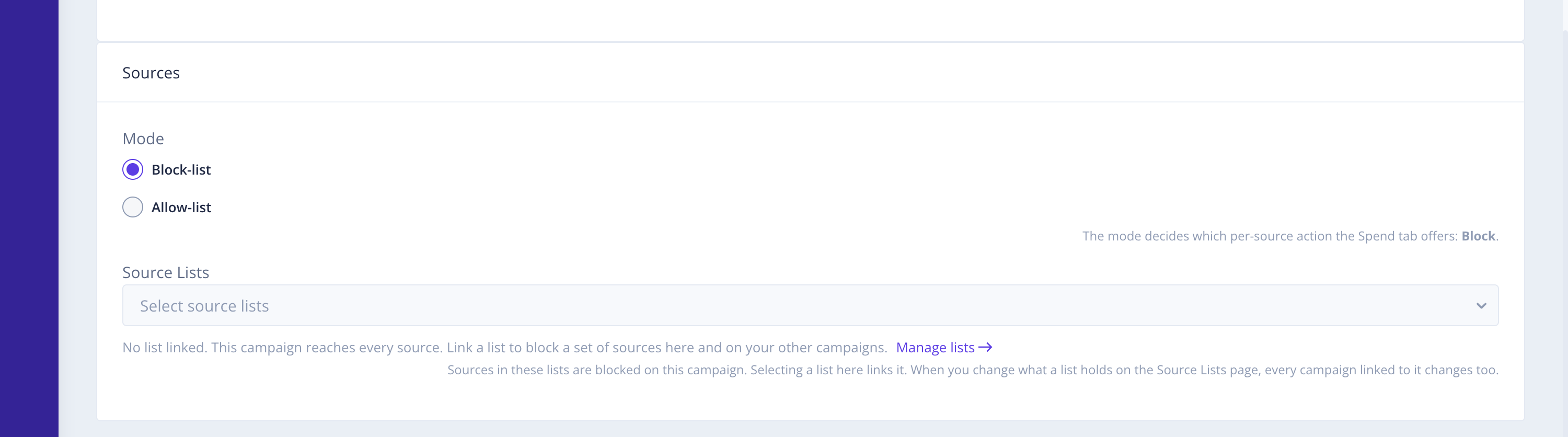
Pick the Mode first, then select the list:
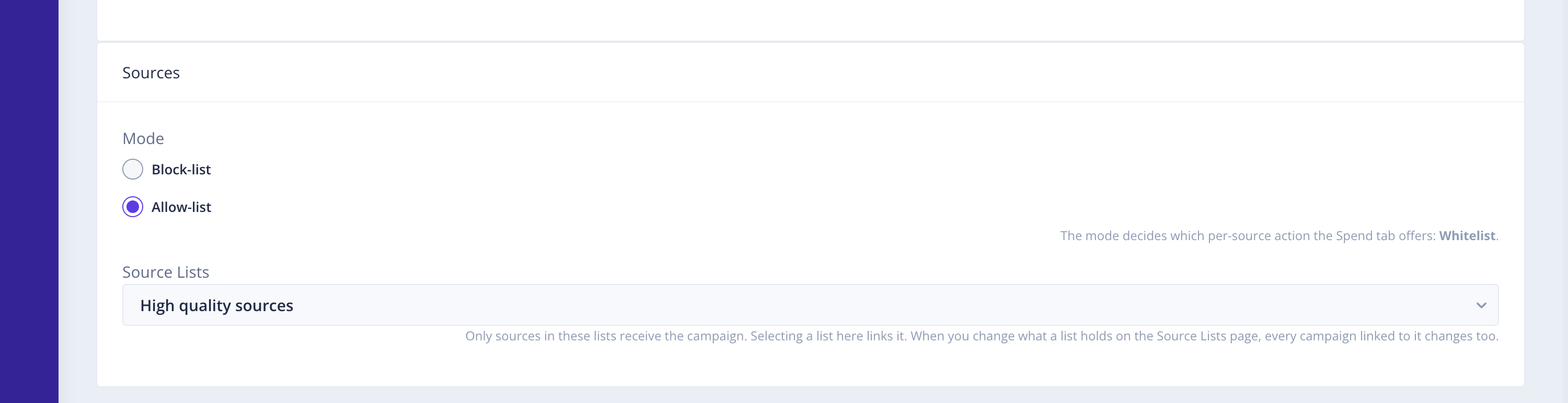
The hint under the picker changes with the mode, so it always tells you what the linked lists are doing:
Block-list and Allow-list Modes
A list has no type of its own. The campaign's mode decides how the list is used, which means the same list can block sources on one campaign and be the only traffic another campaign receives.
| Mode | The campaign | The Spend tab offers |
|---|---|---|
| Block-list | Avoids every source in the linked lists, and reaches everything else | Block |
| Allow-list | Reaches only the sources in the linked lists | Whitelist |
Each mode keeps its own linked lists. A list you linked in Block-list mode is not linked when you switch to Allow-list, and switching back finds it again. Set the mode first, then select the list, or you will link a list into the mode you are leaving.
Sources You Set by Hand
You can still block or whitelist a single source on the Spend tab. Those sources apply on top of whatever the linked lists say, and the Setup tab counts them under By Hand.
Each mode keeps its own by-hand sources too, so switching the mode does not lose them, and they apply again when you switch back.
Sources Held Out of a List
Removing a source from a campaign on the Spend tab holds it out of that campaign even when a linked list names it. The Setup tab counts these under Held Out and lists the IDs.
Select Hand them back to the lists to lift the exclusions, after which those sources follow whatever the linked lists say.
An exclusion applies only to the mode it was made in, so switching the mode clears them.
Set a Default List
Turn on Default for one of your lists and it is linked automatically, in Block-list mode, the first time you open Setup on a new campaign for this account. Change or remove it there, on the campaign.
This is worth setting for a list of sources you never want to buy. New campaigns then start with that protection instead of you remembering to add it.
Global Lists
A global list belongs to Pushnami rather than to one account, and is marked Global in the table. You can link a global list to your campaigns, but you cannot rename it, change its sources or delete it, and you cannot see the IDs inside it, so the table shows the count only. Because a global list has no account, it cannot be your account default.
What Changes When You Change a List
Editing a list changes every campaign linked to it, straight away. That is the point of a list, and it is also the risk: adding a source to an allow-list opens it up on every campaign linked to that list, not just the one you are looking at.
Deleting a list unlinks it everywhere. Campaigns linked to it stop blocking or allowing its sources.
An allow-list that allows nothing cannot be enforced, so a change that empties one resets that campaign to Block-list mode with no lists linked, and the campaign can then deliver to every source.
The app tells you when this happens, and names what the reset dropped so you can set it again. Read that message rather than dismissing it: the reset clears the block side as well, so a default list of sources you were avoiding can go with it.
Choosing an Approach
| What you want | How to do it |
|---|---|
| Stop buying a set of poor sources across every campaign | One Block-list list, set as your account default |
| Run a campaign only on sources you have proven | Allow-list mode, one list of those sources |
| Test a vertical on a specific set of publishers | A list per vertical, linked in Allow-list mode to that campaign |
| Drop one bad source from one campaign | The Spend tab, on that campaign. No list needed |
Keep a whitelist fresh. A list that never changes stops finding you new sources, so revisit an allow-list campaign regularly and let some exploration back in. See Source Optimization for how bidding works alongside these controls.