Managing Creatives
Once you've created creatives, you can edit, clone, and archive them to optimize your campaigns. This guide covers all the ways to manage your existing creatives.
Accessing Your Creatives
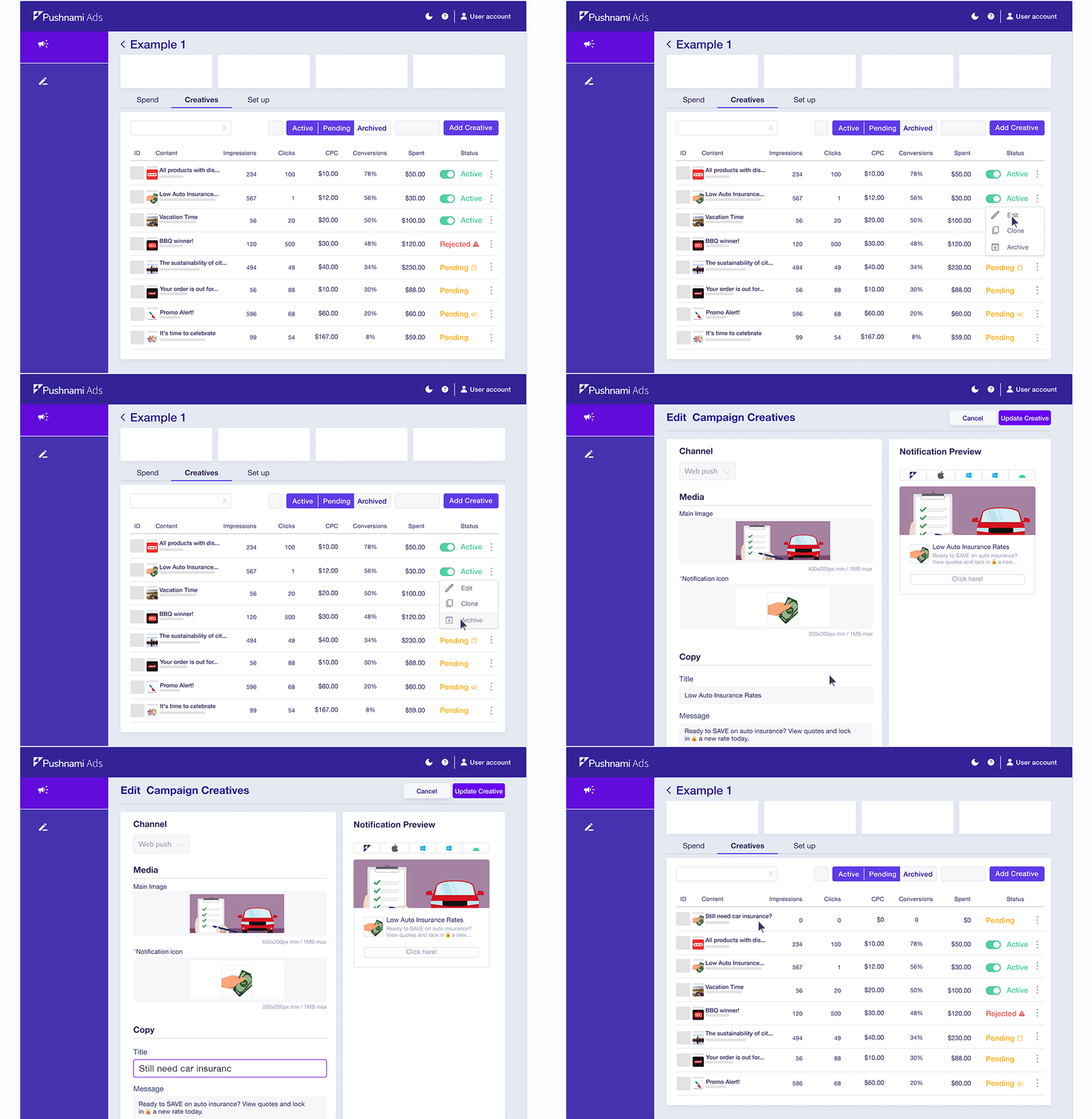
- Navigate to your campaign
- Click the Creatives tab
- View all creatives associated with that campaign
Editing Creatives
Edit your creatives to update messaging, images, or landing page URLs.
How to Edit a Creative
- Find the creative you want to modify
- Click the Edit button (pencil icon) or select Edit Creative from the menu
- Make your changes on the Edit Campaign Creative page
- Click Update Creative to save changes
What You Can Edit
- Title - The headline shown in the notification
- Body - The message text
- Image - The notification image
- Icon - The small icon displayed
- Landing URL - Where users go when they click
- Tracking parameters - UTM and custom tracking values
Re-approval After Editing
When you edit an approved creative, it will be re-submitted for review. The creative may be temporarily paused during the review process.
A warning message will appear when editing approved creatives:
- Changes to approved creatives require re-approval
- Review typically takes 24-48 hours
- The creative won't run until re-approved
Working with Drafts
If your creative is still in draft status:
- Edit as needed
- Click Update Draft to save without submitting
- Click Add Creative when ready to submit for approval
Cloning Creatives
Clone creatives to quickly create variations for A/B testing or to reuse successful creative templates.
How to Clone a Creative
- Find the creative you want to duplicate
- Click the Clone button or select Clone Creative from the menu
- You'll be taken to the Clone Campaign Creatives page
- Modify the cloned creative(s) as needed
- Click Add Creatives to submit or Save As Draft to save for later
Cloning Multiple Variations
The clone feature allows you to create multiple variations at once:
- Clone the original creative
- Click the Clone Creative tab (+ icon) to add another variation
- Each variation appears as a separate tab (Creative 1, Creative 2, etc.)
- Customize each variation independently
- Remove unwanted variations by clicking the X on the tab
- Submit all variations at once
Use Cases for Cloning
- A/B Testing - Test different headlines, images, or CTAs
- Seasonal Updates - Create holiday versions of successful creatives
- Localization - Create region-specific variations
- Quick Iteration - Build on what's working
Archiving Creatives
Archive creatives you no longer need to keep your dashboard organized.
How to Archive a Creative
- Find the creative you want to archive
- Click the Archive button or select Archive from the menu
- Confirm the action
Archived Creative Behavior
- Archived creatives stop running immediately
- They won't appear in your main creative list
- Historical data is preserved
- You can view archived creatives by enabling the archive filter
Restoring Archived Creatives
To restore an archived creative:
- Enable the archive filter to show archived items
- Find the archived creative
- Click Restore or Unarchive
Managing Rejected Creatives
Creatives that don't meet our content guidelines will be rejected.
Viewing Rejection Reasons
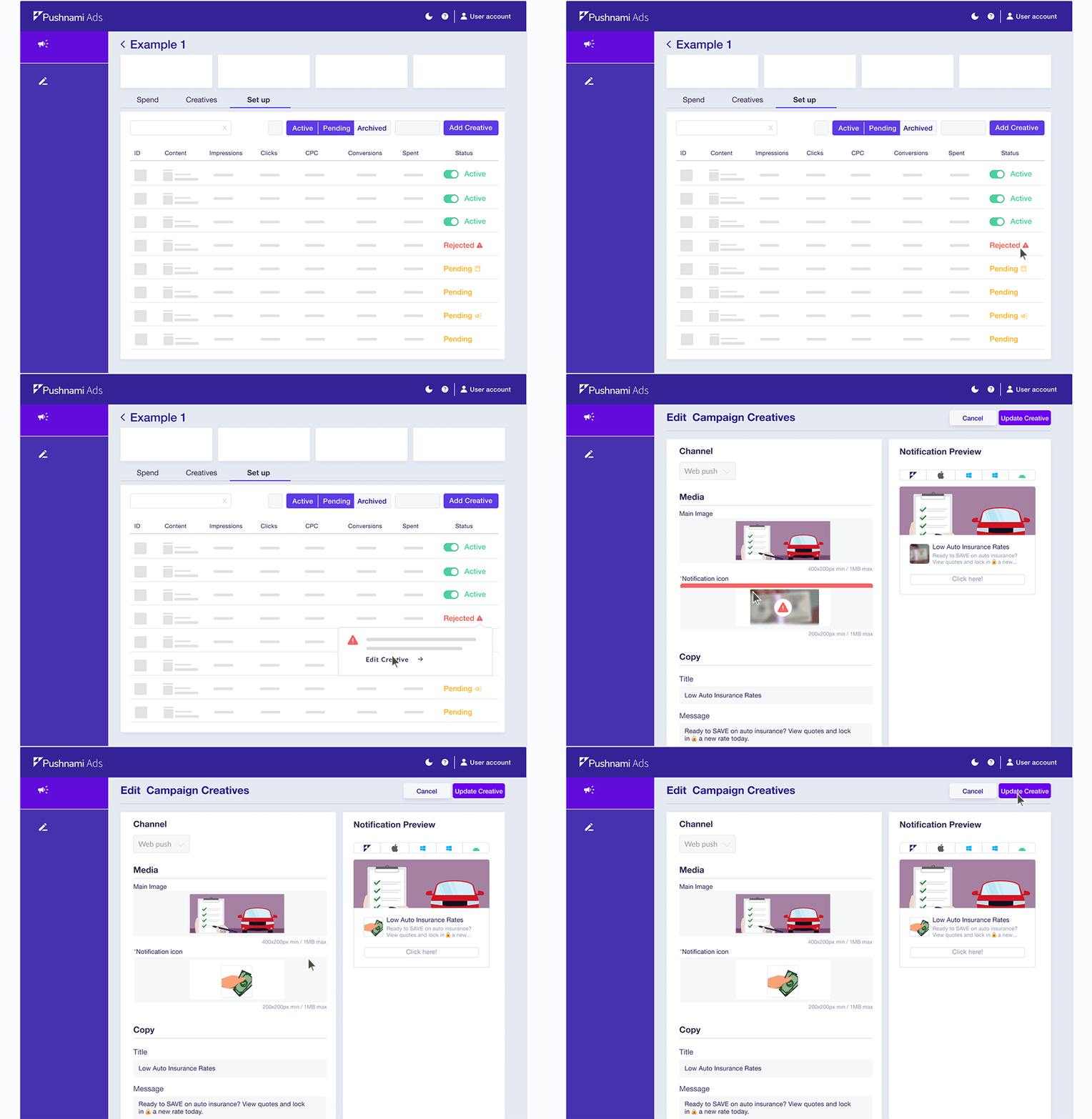
- Go to your campaign's Creatives tab
- Look for creatives with a Rejected status
- Hover over the rejected status to see the reason
- Click Edit Creative to make corrections
Resubmitting After Rejection
- Review the rejection reason carefully
- Edit the creative to address the issue
- Save and resubmit
- Wait 24-48 hours for re-review
Common Rejection Reasons
| Reason | How to Fix |
|---|---|
| Misleading content | Ensure claims are accurate and substantiated |
| Inappropriate imagery | Use appropriate, professional images |
| Prohibited category | Review our content policies |
| Poor image quality | Use high-resolution images meeting specifications |
| Invalid landing page | Ensure URL works and matches creative content |
Creative Status Overview
| Status | Description | Can Edit? | Running? |
|---|---|---|---|
| Draft | Not yet submitted | Yes | No |
| Pending | Under review | No | No |
| Approved | Passed review | Yes (triggers re-review) | Yes |
| Rejected | Failed review | Yes | No |
| Archived | Manually archived | Yes (restore first) | No |
Best Practices
Organization Tips
- Use descriptive names that indicate creative content or test variation
- Archive old creatives regularly to keep your dashboard clean
- Group related creatives for easy comparison
Testing Strategy
- Clone successful creatives and test one variable at a time
- Keep your original creative running while testing variations
- Allow sufficient time to gather meaningful data before declaring a winner
Avoiding Re-approval Delays
- Make all needed edits at once to minimize re-review cycles
- Use drafts to perfect creatives before initial submission
- Review our content guidelines before submitting
Need Help?
Contact support@pushnami.com or reach out to your Pushnami account representative.