Creating a Creative
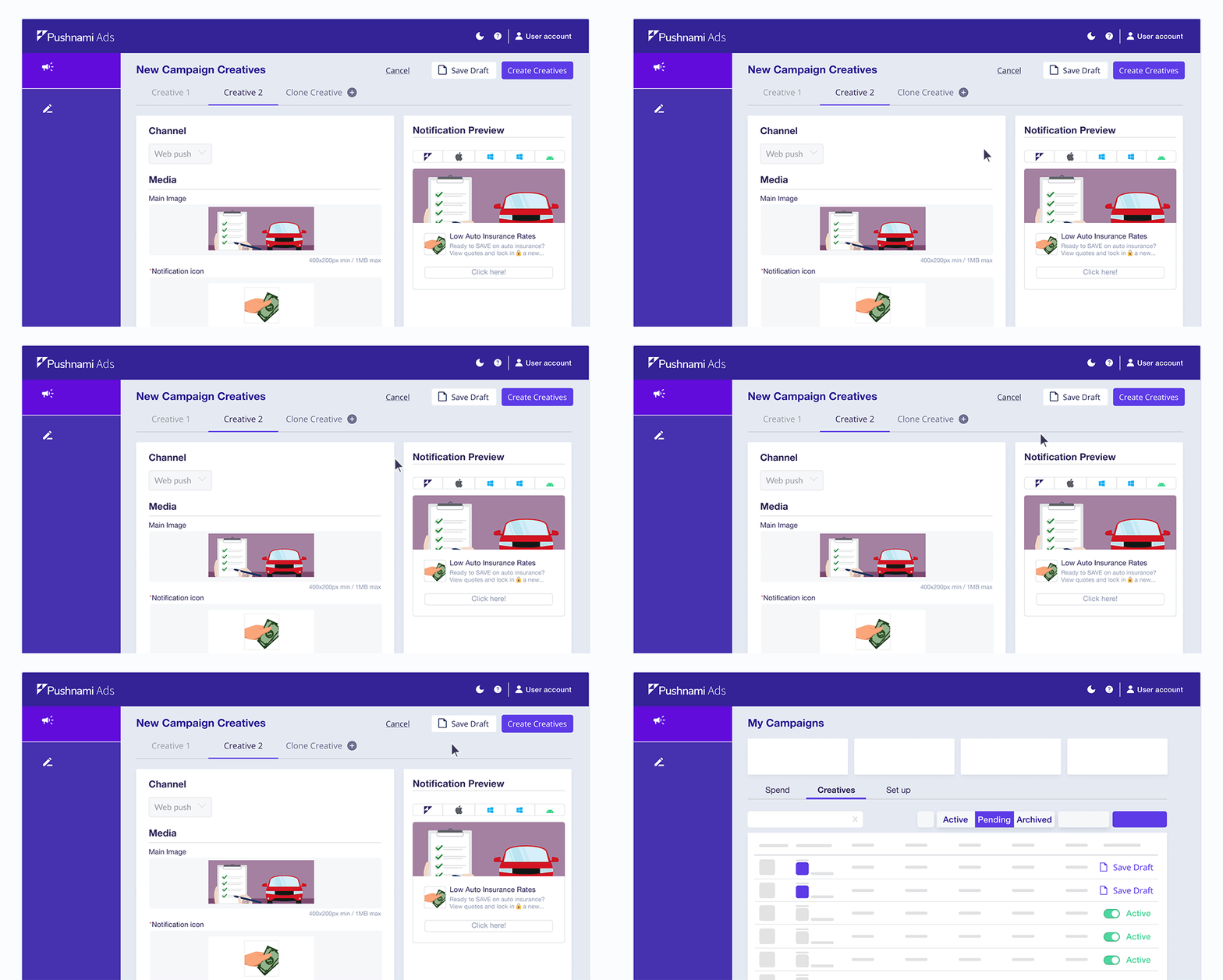
After creating a Campaign, the next step is creating Creatives—the actual push notifications your audience will see. Navigate to the Creatives tab of your Campaign and select "Add Creative".
There is no limit to the number of creatives per campaign, but we recommend having at least 2 creatives to enable A/B testing and identify what resonates best with your audience.
Notification Preview
The preview panel shows how your notification will appear to users. You can switch between different operating systems and browsers to see exactly how your notification displays:
Desktop Previews:
- Windows 10 (Chrome)
- Windows 11 (Chrome)
- macOS (Chrome)
- macOS (Safari)
Mobile Previews:
- Android
Learn more about notification display by device and push notification specifications.
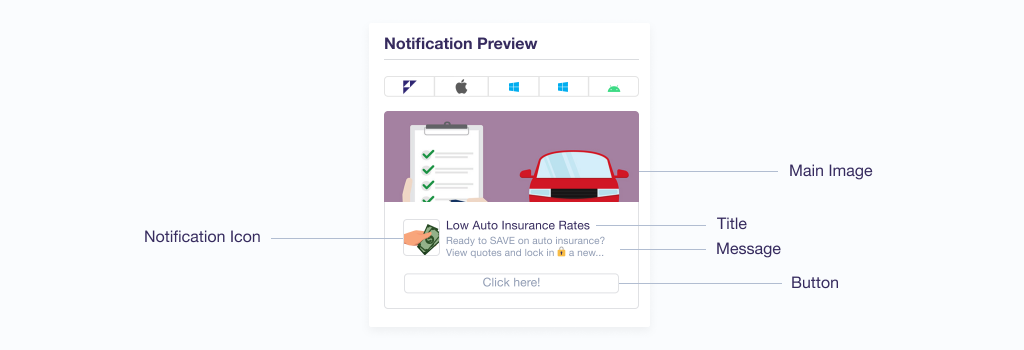
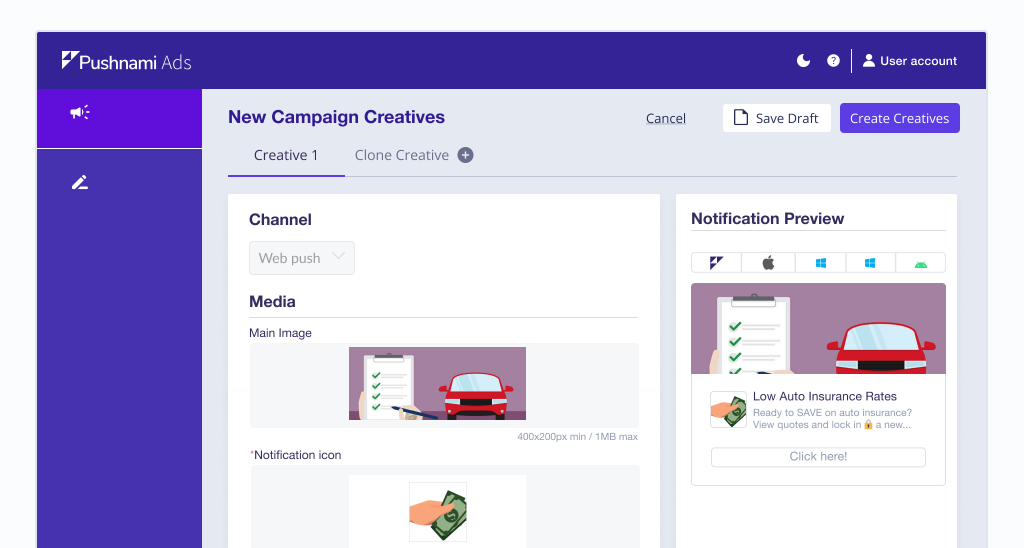
Media
Images are critical to your creative's success. The right image can dramatically increase click-through rates.
Main Image (Hero Image)
- Recommended size: 720×480 pixels (landscape)
- Display: Prominently shown on desktop notifications
- Note: May not display on all mobile devices
We encourage including a main image for all creatives to ensure desktop users receive the best experience.
Notification Icon
- Recommended size: 192×192 pixels (square)
- Required: Yes - this is the primary image seen across all devices
- Display: Shown on both desktop and mobile notifications
Accepted formats: .jpg, .gif, .png
Learn more about image best practices.
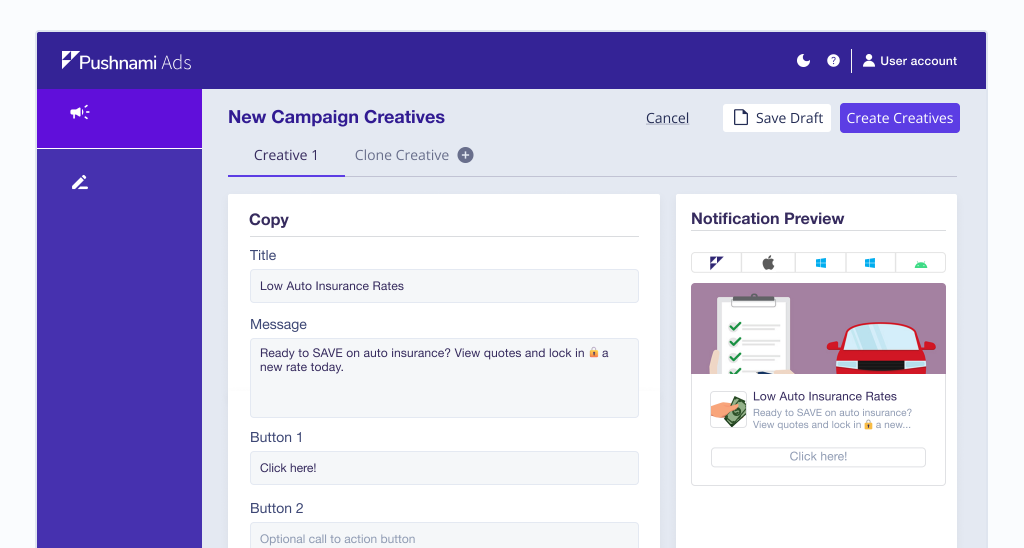
Copy
Craft compelling text that captures attention and drives clicks.
Title
- Character limit: 34 characters
- Purpose: The headline that grabs attention
- Tips: Be clear, urgent, and relevant
Message
- Character limit: 65 characters
- Purpose: Supporting text that provides context
- Tips: Reinforce the title and include a call-to-action
Buttons
Customize the call-to-action buttons on your notification:
Button 1 (Primary)
- Optional field
- If left blank, defaults to "Click Here"
- Use action-oriented text like "Learn More", "Get Started", "Claim Offer"
Button 2 (Secondary)
- Optional additional button
- Use for alternative actions like "Remind Me Later" or "View Details"
Destination Link
The URL where users land when they click your notification.
- Must be a valid, working URL
- Should match the content promised in your notification
- Can include tracking parameters for conversion tracking
- Use the Link Builder to easily add tracking
Learn more about copy best practices.
Submitting Your Creative
Click "Add Creative" to submit your creative for review. The review process typically takes up to 24 hours.
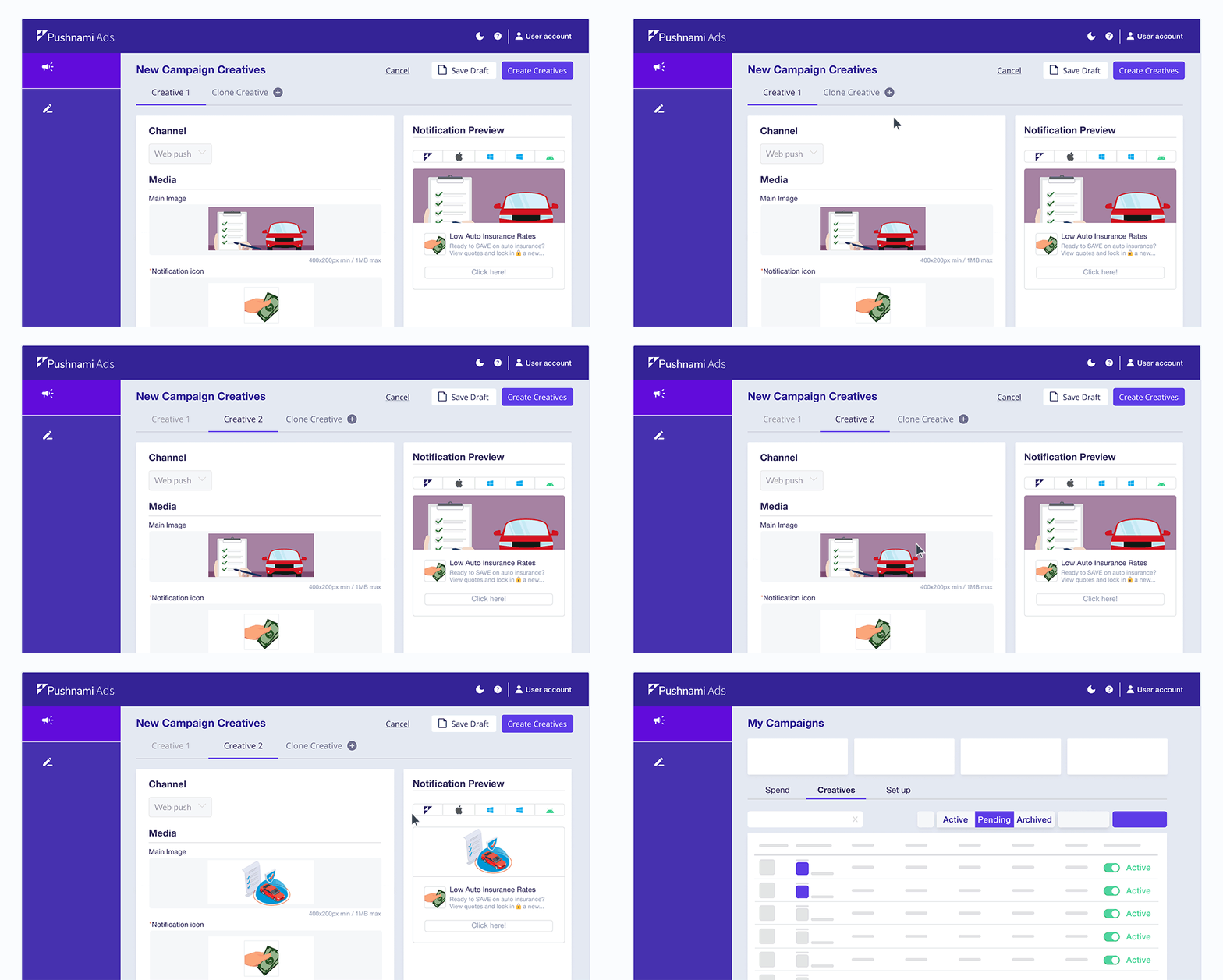
Clone Existing Creatives
Save time by cloning successful creatives:
- Find an existing creative you want to duplicate
- Click the Clone button
- Modify the cloned creative as needed
- Submit for review
This is ideal for:
- A/B testing variations
- Creating seasonal versions
- Testing different images with the same copy
Save as Draft
Not ready to submit? Save your work and return later:
- Fill in your creative details
- Click "Save Draft" instead of "Add Creative"
- Find your draft in the Drafts section
- Continue editing when ready
- Submit when complete
Drafts are useful when:
- Waiting for final approval on copy or images
- Building multiple creatives over time
- Needing stakeholder review before submission
Creative Operations
After creating a creative, you can:
| Action | Description |
|---|---|
| Edit | Modify creative content (requires re-review) |
| Clone | Create a copy to modify |
| Pause | Temporarily stop the creative from running |
| Activate | Resume a paused creative |
| Archive | Remove the creative from active use |
Next Steps
After creating your creative:
- Wait for review approval (up to 24 hours)
- Monitor creative status for updates
- Track performance in your campaign analytics
- Create additional creatives for testing